Great news! All Things Applique now has an account system which will store all of your purchases.
Forgot where you saved a design? No problem, login to your account and download again. Computer crash? (I hope not!) But if so, just login to your account and download your files again.
Before we get to the instructions, let go through a few questions and answers.
Q) How do I sign up?
A) Signing up is easy! Your account will be created when you make a purchase.
Q) Will all of my designs be stored in my account?
A) All designs purchased after 12/31/2013 will be in your account. If you need access to designs purchased prior to 1/1/2014, simply contact me at allthingsapplique (at) gmail (dot) and I can send them to you manually.
Q) Can I share my account with someone else?
A) No. Each account needs to be unique for one user. Our Terms of Use state that sharing files is not allowed. Sharing an account would constitute sharing files which is not permitted.
Q) I have another question not listed above. What do I do?
A) Please contact me at allthingsapplique (at) gmail (dot) com. I am always happy to help!
Now to the step by step instructions. I created a "test" purchase and took screenshots along the way to help illustrate how the account process works.

Showing posts with label Tutorial. Show all posts
Showing posts with label Tutorial. Show all posts
Friday, January 3, 2014


Monday, October 14, 2013
How to Add a Name to an Applique Design in Embird Editor
I get asked fairly often about adding names to designs so I thought I would take a minute to show you how to add a name to an applique design. For this example, we are using our Pumpkin Design, Embird Editor, and a purchased embroidery font.
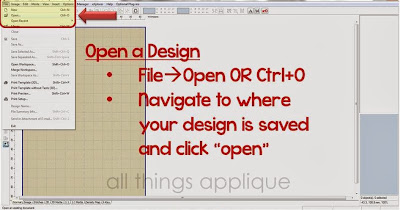
The first step is to open Embird Editor and load a design. In the screenshots below I have tried to draw a box around the area of the screen I am talking about as well as mark it with an arrow. So if you don't know what I am talking about, look for the boxes/arrows! To open a design, Click on File, then Open or use the Keyboard Shortcut "Ctrl+O".
To add text to this design, we need to "Merge" the font designs with the Pumpkin Design. To do this, click on File, then Merge or use the Keyboard Shortcut "Ctrl+M". Once the Merge box opens, navigate to where you have the font designs saved on your computer.
The first step is to open Embird Editor and load a design. In the screenshots below I have tried to draw a box around the area of the screen I am talking about as well as mark it with an arrow. So if you don't know what I am talking about, look for the boxes/arrows! To open a design, Click on File, then Open or use the Keyboard Shortcut "Ctrl+O".

To add text to this design, we need to "Merge" the font designs with the Pumpkin Design. To do this, click on File, then Merge or use the Keyboard Shortcut "Ctrl+M". Once the Merge box opens, navigate to where you have the font designs saved on your computer.

You have the option of adding one letter at a time by clicking on the letter and then clicking "ok". Or, you can add all of the letters at one time by holding down the "Ctrl" key while you select each of the letters, then clicking "ok".
(Note: If you have a name with duplicate letters (example: Allison) you will need to "Copy & Paste" the "l" within the Object Orders Bar to create the second "l".)

You can see in the picture below that Embird did not magically spell out the name Emily and center it nicely in the middle of the pumpkin. Instead, it piled all of the letters on top of each other and put them in alphabetical order...NOT name order! But, we can fix that with a few clicks.

First, we need to reorder the letters from e-i-l-m-y to e-m-i-l-y. To do this, click on the "m" and drag it to just under the "e". When you do this, a pop up box appears that asks you where you want to put the "m". In this case, we want to choose "Insert Before Object" option. If you don't get it right the first time...just click and drag again and try a different option. You will need to keep doing this until your name reads correctly from top to bottom. This will ensure that the name stitches from left to right as opposed to stitching the "e" then the "i", then back to the "m" and so on. You want to have the jump stitches be next to each other so you have less trimming and so those jump stitches don't get in the way of the other letters stitching properly.

Our first Alignment is going to space all the letters in the word "Emily" evenly from where you set the "e" to where you set the "y". This is why is it important to take the time to set the first and last letters strategically. We are also going to align all of the letters so they have the same bottom line. See the instructions on the picture below for specific steps.

The "emily" below is looking better, but the "y" looks funny now that it is too high. The horizontal spacing looks great. Let's fix that "y".

This next step is important. I want the "y" to drop down so the top of the "y" is even with the top of the "m". You must click on the stationary letter first. In this case, click the "m", then hold down your "Ctrl" key and click the "y". Use the keyboard shortcut "Ctrl+G" to open the alignment box and choose to align Vertical by Tops.

Now the "emily" looks just right. It is aligned horizontally and vertically. Now...you are welcome to click on each letter and nudge with arrows or with your mouse until you get the letters how you want...but I think the "Alignment" box is a great tool that is quick and extremely accurate. Much better than my nudging. :)
The final step is to "join" the designs and save! Select all six objects in the Objects Order Bar and click on the "Join" icon.

Notice how the six objects are now one object.

The final step is to save as a new design. Select your machine format and click "OK"

Technically, it is a good practice to save as a new design at the very beginning so you do not save over the original design that you purchased. Be sure to give the file a unique name. I like to include the name that I merged so I can find it again later.

I hope you found this tutorial helpful. Please feel free to contact me at allthingsapplique (at) gmail (dot) com with any questions. Thanks for reading!
Friday, March 15, 2013
Adding a Patch to Cover a Monogram
My sister-n-law was given a super cute hand-me-down dress with matching bloomers. The only catch was that there was an "m" monogram on the dress...and her daughter's name starts with a "c". So she asked me if we could make it work and I said of course! Here are the steps I did to make this adorable and FREE dress work for her.
First, here is a picture of the dress with most of the "m" still in tact. I got a little excited and started ripping out stitches before I took a picture.

And here is a close-up of the process of pulling out the stitches. I decided to cover the "m" with a green circle patch to compliment the pink polka dots on the dress and to match the green rick rack trim. I could have left the "m" alone, but the stitches were pretty dense and therefore raised and I thought you would be able to feel/see the "m" underneath the patch so I decided removing as much of the "m" as possible was the best strategy.

To do this, I used both my applique scissors and a seam ripper and tried to cut through the bottom stitches. Once you cut through the bottom stitches, the top stitches are relatively easy to pull out. I was able to remove all of the top satin stitches. The bottom underlay zig zag stitches were very tough to cut out. But they were also pretty flat so I decided to leave them alone.
The next decision was what size Circle Patch to use to cover the "m". Because the "m" was so close to the top, I knew I was going to need a circle that was wider than the width of the "m" because the top of the circle would be covering the "m" instead of the middle of the circle where the width is the widest. Are you still with me?

I opened a Word document and created 3 circles of varying sizes, printed the circles, and cut them out. Then I placed each of the circles on the "m" to see the smallest circle that would fully cover the "m" but still leave a little bit of room between the top of the circle and the top of the dress.

Four inches was the magic number. I pinned this to the dress exactly where I wanted the circle to stitch and then got my hoop ready for stitching. I decided to only hoop the stabilizer. I used a medium tearaway (I think...it might have been cutaway) and then I used spray adhesive to position the dress where I wanted it.
The next step was crucial to getting the right placement. Once everything was hooped and ready to go...I loaded the circle patch design on my machine and used the layout buttons to move my design on the hoop so it would stitch exactly where I wanted it to.

I thought positioning the top center needle position would be easiest. I then used my arrow buttons to move the needle until it was exactly on the edge of the circle that I had pinned in place.

I even lowered my needle to double check that it was lined up. I checked the bottom, right, and left boundaries as well. Once I was pleased with the location, I removed my cut out circle template and stitched my first placement line for the circle patch.

You can see in this picture how the "m" is mostly covered by the top of the circle patch but there is still room to see some of the dress in between the circle patch and the top of the dress. Mission accomplished. :)
The green fabric I used for the patch was pretty thin and I was afraid you would still be able to feel part of the underlay stitches of the "m" so I tacked down a layer of flannel before I tacked down my green fabric layer.
After the circle patch finished...I stitched the monogram in a pink thread to match the polka dots.

And there you have it...a personalized hand-me-down dressed re-worked for another sweet girl.

I hope this step by step blog helps you recreate something too!
First, here is a picture of the dress with most of the "m" still in tact. I got a little excited and started ripping out stitches before I took a picture.
And here is a close-up of the process of pulling out the stitches. I decided to cover the "m" with a green circle patch to compliment the pink polka dots on the dress and to match the green rick rack trim. I could have left the "m" alone, but the stitches were pretty dense and therefore raised and I thought you would be able to feel/see the "m" underneath the patch so I decided removing as much of the "m" as possible was the best strategy.
To do this, I used both my applique scissors and a seam ripper and tried to cut through the bottom stitches. Once you cut through the bottom stitches, the top stitches are relatively easy to pull out. I was able to remove all of the top satin stitches. The bottom underlay zig zag stitches were very tough to cut out. But they were also pretty flat so I decided to leave them alone.
The next decision was what size Circle Patch to use to cover the "m". Because the "m" was so close to the top, I knew I was going to need a circle that was wider than the width of the "m" because the top of the circle would be covering the "m" instead of the middle of the circle where the width is the widest. Are you still with me?
I opened a Word document and created 3 circles of varying sizes, printed the circles, and cut them out. Then I placed each of the circles on the "m" to see the smallest circle that would fully cover the "m" but still leave a little bit of room between the top of the circle and the top of the dress.
Four inches was the magic number. I pinned this to the dress exactly where I wanted the circle to stitch and then got my hoop ready for stitching. I decided to only hoop the stabilizer. I used a medium tearaway (I think...it might have been cutaway) and then I used spray adhesive to position the dress where I wanted it.
The next step was crucial to getting the right placement. Once everything was hooped and ready to go...I loaded the circle patch design on my machine and used the layout buttons to move my design on the hoop so it would stitch exactly where I wanted it to.
I thought positioning the top center needle position would be easiest. I then used my arrow buttons to move the needle until it was exactly on the edge of the circle that I had pinned in place.
I even lowered my needle to double check that it was lined up. I checked the bottom, right, and left boundaries as well. Once I was pleased with the location, I removed my cut out circle template and stitched my first placement line for the circle patch.
You can see in this picture how the "m" is mostly covered by the top of the circle patch but there is still room to see some of the dress in between the circle patch and the top of the dress. Mission accomplished. :)
The green fabric I used for the patch was pretty thin and I was afraid you would still be able to feel part of the underlay stitches of the "m" so I tacked down a layer of flannel before I tacked down my green fabric layer.
After the circle patch finished...I stitched the monogram in a pink thread to match the polka dots.
And there you have it...a personalized hand-me-down dressed re-worked for another sweet girl.
I hope this step by step blog helps you recreate something too!
Thursday, October 4, 2012
Bunch of Pumpkins Tutorial
One of our most popular Back to School designs was this adorable Bunch of Apples design. The design has a little bit of fill stitch, but is mostly a raggy stitch and pretty quick to stitch out. You can use 1 fabric, 2 different fabrics, or 9 different fabrics as I did in the example below.

I decided to create another "bunch" design...this time Pumpkins! I am also considering bunches of footballs, ornaments, hearts, etc. It is a great design to use up all kinds of small pieces of scrap fabric...or to really showcase one fabric that you LOVE!
I thought it might be helpful to detail by pictures how I stitch this design. So here goes...
First up is the instruction sheet:

(As an aside, did you know that every design you purchase from All Things Applique comes with a detailed instruction sheet similar to this one? I hope the instructions help!)
The first step is to pick your fabrics. I start by cutting small squares. (Note: For the 5X7 design, each pumpkin is 1.25" x 1.4" so these are small pieces of fabric.) Then I play with the squares to arrange them however I like. I think I spent as much time arranging as I did stitching! Ha! But truly...I think this design looks good no matter how you arrange your fabric.

The first step in this design is the pumpkin stems. Simply hoop your item...make sure it is centered...thread your brown or green thread and stitch the first color.

One quick note...
I set the design to stitch as follows:
Top Row: Left to Right
Middle Row: Right to Left
Bottom Row: Left to Right
This order prevents a big jump stitch from the top right pumpkin to the middle left pumpkin. The design snakes down to create the smallest jump stitches possible.
The next step is the Placement Stitch. I like to place a large sheet of flannel or felt down that covers the entire hoop for this step. See below.

Now you are ready to stitch color 2. Note, all placement stitches will stitch in one color without stopping.
Once your placement stitch is in place...
 \
\
It is time to stitch the tackdown stitch for all 9 pumpkins. You have a couple of choices here. You can lay one fabric down at a time and add the next fabric at each color stop on the machine. Or, you can lay all 9 fabrics down at once and then just go through the 9 tackdown stitches without having to remove your hoop or lay down any fabric in between stops. See below for an example.

If you choose the latter, you will need to make sure that your scrap fabrics pieces do not overlap at all or the tackdown stitches might grab the wrong fabric. Either way is fine...just do what is most comfortable for you!
After all of the tackdown stitches are complete, you are ready for the final step...the redwork/detail stitches. These will all stitch in one step. Again, the order snakes down the design...top row is left to right, middle row is right to left, and bottom row is left to right.

Once all stitching is done, remove your item from the hoop and carefully trim away the excess fabric and enjoy your beautiful work!

What other "bunch" designs would you like to see?
I decided to create another "bunch" design...this time Pumpkins! I am also considering bunches of footballs, ornaments, hearts, etc. It is a great design to use up all kinds of small pieces of scrap fabric...or to really showcase one fabric that you LOVE!
I thought it might be helpful to detail by pictures how I stitch this design. So here goes...
First up is the instruction sheet:
(As an aside, did you know that every design you purchase from All Things Applique comes with a detailed instruction sheet similar to this one? I hope the instructions help!)
The first step is to pick your fabrics. I start by cutting small squares. (Note: For the 5X7 design, each pumpkin is 1.25" x 1.4" so these are small pieces of fabric.) Then I play with the squares to arrange them however I like. I think I spent as much time arranging as I did stitching! Ha! But truly...I think this design looks good no matter how you arrange your fabric.
The first step in this design is the pumpkin stems. Simply hoop your item...make sure it is centered...thread your brown or green thread and stitch the first color.
One quick note...
I set the design to stitch as follows:
Top Row: Left to Right
Middle Row: Right to Left
Bottom Row: Left to Right
This order prevents a big jump stitch from the top right pumpkin to the middle left pumpkin. The design snakes down to create the smallest jump stitches possible.
The next step is the Placement Stitch. I like to place a large sheet of flannel or felt down that covers the entire hoop for this step. See below.
Now you are ready to stitch color 2. Note, all placement stitches will stitch in one color without stopping.
Once your placement stitch is in place...
\
It is time to stitch the tackdown stitch for all 9 pumpkins. You have a couple of choices here. You can lay one fabric down at a time and add the next fabric at each color stop on the machine. Or, you can lay all 9 fabrics down at once and then just go through the 9 tackdown stitches without having to remove your hoop or lay down any fabric in between stops. See below for an example.
If you choose the latter, you will need to make sure that your scrap fabrics pieces do not overlap at all or the tackdown stitches might grab the wrong fabric. Either way is fine...just do what is most comfortable for you!
After all of the tackdown stitches are complete, you are ready for the final step...the redwork/detail stitches. These will all stitch in one step. Again, the order snakes down the design...top row is left to right, middle row is right to left, and bottom row is left to right.
Once all stitching is done, remove your item from the hoop and carefully trim away the excess fabric and enjoy your beautiful work!
What other "bunch" designs would you like to see?
Thursday, June 14, 2012
How to Add Magnets to Raggy Numbers or Raggy Alphabet
I had so much fun making the Raggy Alphabet and I hope you guys have enjoyed them too! But what really added to the fun was watching my boys enjoy them! Because the raggy letters stitch so fast, my oldest sat on a stool and watched me make almost every letter. I had to finish a few after he went to bed...and he snuck down the stairs 30 minutes after we put him down and wanted to know what letter I was working on. He was thrilled to wake up to the finished alphabet the next morning.
I decided to try something a little bit different with the numbers...I added magnets! There are plenty of ways to go about doing this...but I thought I would share my process.
I first stitched the placement stitch. You can see the "8" placement stitch in the picture below. Then I used a little bit of spray adhesive on the back of the magnets. I wanted to make sure they stayed in place during the stitching process. Ideally, I wanted to place a magnet at the top and at the bottom of each letter...but I also wanted to make sure the needle had enough room to clear the magnet when stitching...so I sometimes placed the magnet off center in order to have more stitching room. It is very important that your magnet not come in contact with the needle...so make sure you leave enough room and I would recommend staying close during the stitching process.

After the magnets were just where I wanted them...with spray adhesive keeping them still...I added the fabric to the top and bottom of the hoop. Then I started up the machine and kept a very close eye on the process. When the needle got close to the magnet, the presser foot would raise up on top of the magnet. The stitching sounded different, but it worked just fine. As soon as the needle would pass the magnet area, the presser foot would snap back down to be flat on the fabric and would go back to its steady noise that we are all familiar with!

I should have used flatter magnets...but this it what I had around the house and it worked.
The numbers have been back and forth in our house...from the fridge to my magnetic office desk to the floor...they are still enjoying them!
Hope you enjoy them too!
I decided to try something a little bit different with the numbers...I added magnets! There are plenty of ways to go about doing this...but I thought I would share my process.
I first stitched the placement stitch. You can see the "8" placement stitch in the picture below. Then I used a little bit of spray adhesive on the back of the magnets. I wanted to make sure they stayed in place during the stitching process. Ideally, I wanted to place a magnet at the top and at the bottom of each letter...but I also wanted to make sure the needle had enough room to clear the magnet when stitching...so I sometimes placed the magnet off center in order to have more stitching room. It is very important that your magnet not come in contact with the needle...so make sure you leave enough room and I would recommend staying close during the stitching process.
After the magnets were just where I wanted them...with spray adhesive keeping them still...I added the fabric to the top and bottom of the hoop. Then I started up the machine and kept a very close eye on the process. When the needle got close to the magnet, the presser foot would raise up on top of the magnet. The stitching sounded different, but it worked just fine. As soon as the needle would pass the magnet area, the presser foot would snap back down to be flat on the fabric and would go back to its steady noise that we are all familiar with!
I should have used flatter magnets...but this it what I had around the house and it worked.
The numbers have been back and forth in our house...from the fridge to my magnetic office desk to the floor...they are still enjoying them!
Hope you enjoy them too!
Thursday, January 5, 2012
Year-End Inventory Template**
While it's not quite tax time, there is a very important year-end step when it comes to all of those blanks we have laying around! Even though I am a former CPA and tax accountant, I must admit that I have had to back in to my year-end inventory before because I forgot to take a year-end count. I realized in February that I forgot to count at year-end so I had to take my February count and add back all of the items I sold between year-end and my February count date. Trust me - it was not fun! So hopefully this inventory template will help you take stock of your inventory now so when it is tax time you are ready to just pop in your year-end inventory number and keep on rolling!
Here are a few screen shots and explanations of how it works.

First, there are 9 columns. Most are self-explanatory, but here is a quick rundown:
*Gender: Boy, Girl, n/a
*Style: I use this column for the type of shirt - Crew, Frill, Lettuce Edge, etc.
*Sleeve: Short, Long
*Color: any
*Size: you can enter however you like, just make sure you are consistent. For example, don't enter 2T on one row and 2 T on another row. (Did you catch the difference? I put a space between the 2 and T on the latter).
*Price: This is the price you paid for the item. It might be necessary to pull some invoices if you order wholesale. Or if your blank still has a pricetag on it you could use that (be sure to adjust the price if you think you bought it on sale.)
*Quantity: The number of the specific item that you have in stock.
*Value: This column is a formula. It multiplies the Price column by the Quantity column. DO NOT ADJUST THIS COLUMN.
*Low?: I set up a formula in this column to let you know which items are low in stock. If you only have 1 of any item left, the word "YES" will appear in the "Low" column. If you choose to keep this inventory spreadsheet year-round, this will help you know when to re-order certain sizes or when to run out to Wal-Mart/Old Navy/etc. to stock up!
There is also a Total row at the very bottom of the spreadsheet.
Once you have entered your items, the Total Row will give you the total year-end inventory number. Woo hoo!
DO NOT ADJUST THIS ROW. :)
The first time you fill this spreadsheet out will be the toughest. Going forward you will just be able to edit the quantity and/or price column and add whatever new blank items you acquire throughout the year.
Important: Once you have your year-end inventory entered into the spreadsheet, be sure to save that document as 12.31.2011 Year-End Inventory. Do not make any other changes to that file. I like to print out my year-end inventory just so I have a hard copy in case something funny happens and I accidentally write over the information. It happens to the best of us. Sigh.
If you want to build on your 12/31/2011 workbook for the current year, the first thing you need to do is to save the 2011 workbook as a 12/31/2012 Year-End Inventory workbook. This will ensure that you do not change your 12/31/2011 inventory numbers. Basically, you will have a workbook for each year. You can modify the workbook throughout the year, but at each year-end the workbook becomes final!
Once your data is entered, you can manipulate the columns to give you some important information quickly. For example, if a customer wants to know if you have enough inventory to make several "Boy" shirts, you can tell the spreadsheet to just show you "Boy" items. Here's how:

Once you have followed those steps, your data should look like this:

Notice there are only "Boy" items listed. The Total row also updated to show you how much in "Boy" inventory you currently have in stock.
Looking at that data though, I want to adjust it a little bit more. I want the "Boy" shirts to be in order from smallest size to largest size. To do this, I click on the dropdown box in the "Size" column and click on the "Sort A to Z" row.

Here is my "Boy" inventory sorted by "Size":

When you are ready to go back to viewing all of the data again, simply click on the dropdown box for whatever columns you chose to filter and click on the "Clear Filter from ______" row. You can tell which columns have a filter applied because the dropdown arrow has a funnel looking icon next to it.

So there you have it...my attempt at a year-end inventory template for all you embroiderers out there! I hope this helps!
To download the spreadsheet, simply visit www.allthingsapplique.com and click on the "Forms" category. This spreadsheet is on sale for only a penny, but while you are there, feel free to pick up one of your favorite designs! And remember, our Valentine designs are currently 50% off!
My best advice - count that inventory now! :)
**NOTE: This post is for those of you that have a small embroidery business and need to count and total your year-end inventory. This blog post and template are meant to be a helpful tool for inventory counting and is not accounting advice.
Here are a few screen shots and explanations of how it works.
First, there are 9 columns. Most are self-explanatory, but here is a quick rundown:
*Gender: Boy, Girl, n/a
*Style: I use this column for the type of shirt - Crew, Frill, Lettuce Edge, etc.
*Sleeve: Short, Long
*Color: any
*Size: you can enter however you like, just make sure you are consistent. For example, don't enter 2T on one row and 2 T on another row. (Did you catch the difference? I put a space between the 2 and T on the latter).
*Price: This is the price you paid for the item. It might be necessary to pull some invoices if you order wholesale. Or if your blank still has a pricetag on it you could use that (be sure to adjust the price if you think you bought it on sale.)
*Quantity: The number of the specific item that you have in stock.
*Value: This column is a formula. It multiplies the Price column by the Quantity column. DO NOT ADJUST THIS COLUMN.
*Low?: I set up a formula in this column to let you know which items are low in stock. If you only have 1 of any item left, the word "YES" will appear in the "Low" column. If you choose to keep this inventory spreadsheet year-round, this will help you know when to re-order certain sizes or when to run out to Wal-Mart/Old Navy/etc. to stock up!
There is also a Total row at the very bottom of the spreadsheet.
Once you have entered your items, the Total Row will give you the total year-end inventory number. Woo hoo!
DO NOT ADJUST THIS ROW. :)
The first time you fill this spreadsheet out will be the toughest. Going forward you will just be able to edit the quantity and/or price column and add whatever new blank items you acquire throughout the year.
Important: Once you have your year-end inventory entered into the spreadsheet, be sure to save that document as 12.31.2011 Year-End Inventory. Do not make any other changes to that file. I like to print out my year-end inventory just so I have a hard copy in case something funny happens and I accidentally write over the information. It happens to the best of us. Sigh.
If you want to build on your 12/31/2011 workbook for the current year, the first thing you need to do is to save the 2011 workbook as a 12/31/2012 Year-End Inventory workbook. This will ensure that you do not change your 12/31/2011 inventory numbers. Basically, you will have a workbook for each year. You can modify the workbook throughout the year, but at each year-end the workbook becomes final!
Once your data is entered, you can manipulate the columns to give you some important information quickly. For example, if a customer wants to know if you have enough inventory to make several "Boy" shirts, you can tell the spreadsheet to just show you "Boy" items. Here's how:
Once you have followed those steps, your data should look like this:
Notice there are only "Boy" items listed. The Total row also updated to show you how much in "Boy" inventory you currently have in stock.
Looking at that data though, I want to adjust it a little bit more. I want the "Boy" shirts to be in order from smallest size to largest size. To do this, I click on the dropdown box in the "Size" column and click on the "Sort A to Z" row.
Here is my "Boy" inventory sorted by "Size":
When you are ready to go back to viewing all of the data again, simply click on the dropdown box for whatever columns you chose to filter and click on the "Clear Filter from ______" row. You can tell which columns have a filter applied because the dropdown arrow has a funnel looking icon next to it.
So there you have it...my attempt at a year-end inventory template for all you embroiderers out there! I hope this helps!
To download the spreadsheet, simply visit www.allthingsapplique.com and click on the "Forms" category. This spreadsheet is on sale for only a penny, but while you are there, feel free to pick up one of your favorite designs! And remember, our Valentine designs are currently 50% off!
My best advice - count that inventory now! :)
**NOTE: This post is for those of you that have a small embroidery business and need to count and total your year-end inventory. This blog post and template are meant to be a helpful tool for inventory counting and is not accounting advice.
Subscribe to:
Posts (Atom)